
j Q33
Associate II
July 10, 2017
Solved

Debugging Skill and Pull Down Resistor

  • July 10, 2017
  • 2 replies
  • 2955 views
Posted on July 11, 2017 at 00:15

Hi,

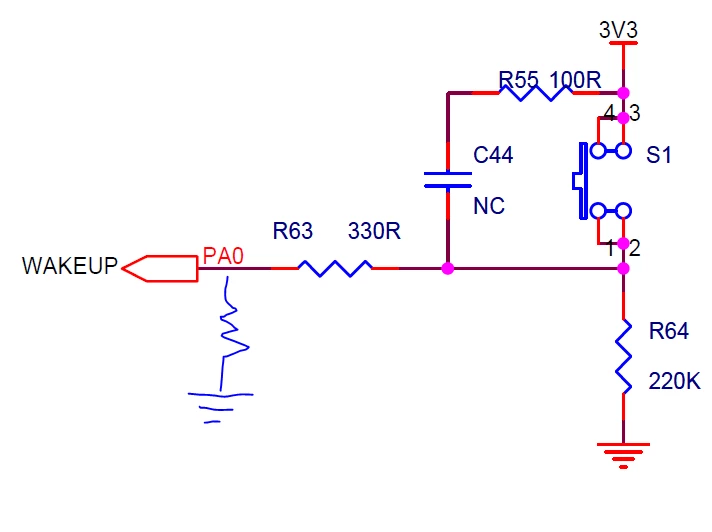
I have a quick question about the pull-up and the pull-down resistor. For example, I want to use the switch (S1) to control the output of the GPIO pin (PA0), and read this output to turn on/off another LED. When I set the GPIO pin,

GPIO_InitStructure.GPIO_Pin = GPIO_Pin_0;

GPIO_InitStructure.GPIO_Mode = GPIO_Mode_IN;

GPIO_InitStructure.GPIO_PuPd = GPIO_PuPd_DOWN;

GPIO_Init(GPIOA, &GPIO_InitStructure);

I can make the program work as I expected when I set it to be pull-down or NOPULL (float?). After some searching online, my understanding is that when I set the pin to have a pull-down resistor, there is a pull-down resistor shown in the figure, the PA0 is 0 when S1 is open and is 1 when S1 is closed. Is my understanding correct?
0690X00000607XQQAY.png

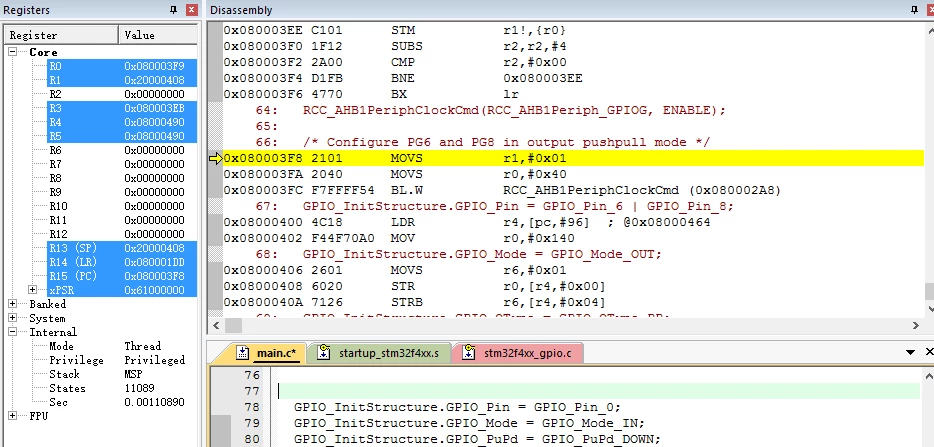
Also, when I use the debugmode in Keil, there are a register block and a disassembly block shown on the screen but I do not know how to use them. For example, I want to see the output of the pin PA0 in each step (when I press S1 or release S1), which part shall I look at?
0690X00000607XVQAY.png

Another minor question is that what will happen if I mistakenly set the mode to be pull-up. Will the output always be HIGH, or somewhere randomly between HIGH and HIGH/2 (since I guess pull-up resistor and R64 divide the voltage by half)?

Thank you for your help!

#keil #pull-down #stm-32f407 #pull-up #debug #gpio

Note: this post was migrated and contained many threaded conversations, some content may be missing.
This topic has been closed for replies.
Best answer by Bob Boys
Posted on July 12, 2017 at 08:16

Hello

In order to view a GPIO pin, you can use the System Viewer in uVision.

While in Debug mode, select Peripheral/System Viewer from the toolbar and then select the peripheral you want.

The peripheral registers update (if they are allowed to by the STM32) while the program runs and is non-intrusive.

Look at page 15: 

http://www.keil.com/appnotes/docs/apnt_253.asp

You can also use a Watch window if you have a global or static variable.  Sometimes you can set Watch on the physical address of the peripheral.  Look in the System Viewer to find this address.  Watch and Memory windows also update while the program runs and do not steal CPU cycles to do this.

There is the new Event Recorder - you can annotate your code but this is non-intrusive.

If you are using a Cortex-M3, M4, M7 you can use the Logic Analyzer to view a variable graphically.  This is also described in the appnote mentioned above and is non-intrusive.

Good luck !

Bob

2 replies

Tesla DeLorean
Guru
July 11, 2017
Posted on July 11, 2017 at 02:51

The pull up/down is nominally 50KOhm +/-20%, check the Data Sheet for your specific part.

It's going to act like a resistor if you switch in to the circuit, not behave randomly. The voltage on the pin will determine the level read, per VIL and VIH specs.

Tips, Buy me a coffee, or three.. PayPal VenmoUp vote any posts that you find helpful, it shows what's working..
Bob Boys
Bob BoysAnswer
Visitor II
July 12, 2017
Posted on July 12, 2017 at 08:16

Hello

In order to view a GPIO pin, you can use the System Viewer in uVision.

While in Debug mode, select Peripheral/System Viewer from the toolbar and then select the peripheral you want.

The peripheral registers update (if they are allowed to by the STM32) while the program runs and is non-intrusive.

Look at page 15: 

http://www.keil.com/appnotes/docs/apnt_253.asp

You can also use a Watch window if you have a global or static variable.  Sometimes you can set Watch on the physical address of the peripheral.  Look in the System Viewer to find this address.  Watch and Memory windows also update while the program runs and do not steal CPU cycles to do this.

There is the new Event Recorder - you can annotate your code but this is non-intrusive.

If you are using a Cortex-M3, M4, M7 you can use the Logic Analyzer to view a variable graphically.  This is also described in the appnote mentioned above and is non-intrusive.

Good luck !

Bob

j Q33
j Q33Author
Associate II
July 12, 2017
Posted on July 12, 2017 at 23:40

Hi Bob,

Thanks for your reply!  When I selected View->System Viewer, there is nothing in the submenu and I could not see any system viewer window shown when in the debug mode.  I could open the Watch window though (and when I typed GPIOA, I could monitor all the registers).  I used J-Link/J-Trace Cortex and set the Port to be SW.  In Utilities, I chose J-Link/J-Trace Cortex and add STMF4xx Flash in the settings.  Do you know how to solve the problem to see the GPIO pins like in page 15 of the tutorial?  Thanks for your help!

Bob Boys
Visitor II
July 12, 2017
Posted on July 12, 2017 at 23:50

Hello

What version MDK are you using ?

What board ?

This information is provided by a file CPUname.svd.

It is selected when you select the processor.

Bob

bob.boys@arm.com

________________

Attachments :

image001.jpg : https://st--c.eu10.content.force.com/sfc/dist/version/download/?oid=00Db0000000YtG6&ids=0680X000006HyYx&d=%2Fa%2F0X0000000b9f%2FqSUOH8qX48S12ax7ClpDtCSjI4KlBj6XNISSzJKUxr0&asPdf=false