Explorer
May 17, 2026
Solved

Migrate a Simulator project to a real Microcontroller project in TouchGFX

  • May 17, 2026
  • 1 reply
  • 115 views

Hi !

I've using TouchGFX Designer for a while, only using Simulator project (which Board setting is PC) for sfx evaluation and learning. And I wanna try to flash my previous project running on a real microcontroller board like F429 discovery board.

Here's my question: How to migrate my previous PC Simulator project to new CubeMX project based on real board project?

I tried to find related settings in TouchGFX but failed. Is it the only way to migrate my previous ui into new project by doing all the steps in the new TouchGFX project?

Thanks !
Best answer by JohanAstrup

Hello @pentaxkf_32.

It is possible to import GUIs into different TouchGFX projects.
If you want to use a board with an available TBS in TouchGFX Designer (e.g. the STM32F469I Discovery), it is very easy to test a GUI on hardware. I have tried to create a simple step-by-step guide below:

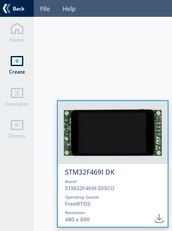
  1. Create a new project in TouchGFX Designer by selecting a TBS 
    JohanAstrup_0-1779087226557.png
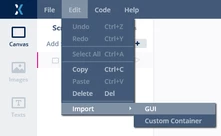
  2. Once created, navigate to Edit -> Import -> GUI
    JohanAstrup_1-1779087329368.png


  3. Click the Browse button in the top-left corner.

  4. Navigate to the folder containing the project from which you want to import the GUI.

  5. Select the .touchgfx file and click Open.

This will import the GUI from the selected project, which can then easily be flashed to the board by pressing the Run Target button in the bottom-right corner of TouchGFX Designer.

NB: Importing a GUI into a different project requires that both TouchGFX projects are based on the same version of TouchGFX.

Best regards,
Johan

1 reply

ST Employee
May 18, 2026

Hello @pentaxkf_32.

It is possible to import GUIs into different TouchGFX projects.
If you want to use a board with an available TBS in TouchGFX Designer (e.g. the STM32F469I Discovery), it is very easy to test a GUI on hardware. I have tried to create a simple step-by-step guide below:

  1. Create a new project in TouchGFX Designer by selecting a TBS 
    JohanAstrup_0-1779087226557.png
  2. Once created, navigate to Edit -> Import -> GUI
    JohanAstrup_1-1779087329368.png


  3. Click the Browse button in the top-left corner.

  4. Navigate to the folder containing the project from which you want to import the GUI.

  5. Select the .touchgfx file and click Open.

This will import the GUI from the selected project, which can then easily be flashed to the board by pressing the Run Target button in the bottom-right corner of TouchGFX Designer.

NB: Importing a GUI into a different project requires that both TouchGFX projects are based on the same version of TouchGFX.

Best regards,
Johan